
It used to be that a 512GB SSD for your Windows installation felt ample. Then came the "AI" wave.
Suddenly, browsers, code editors (like VS Code or Cursor), and local dev tools are "AI-powered." While the features are great, they often silently download Large Language Model (LLM) files directly to your machine. These models can be several gigabytes each and are almost always hardcoded to live in your user profile (C:\Users\[Name]\AppData\Local).
Because moving your home directory is a recipe for system instability, the only real solution is a bigger boat. I recently jumped from a 512GB to a 4TB M.2 SSD, and the process revealed some modern hurdles—specifically with "ghost" BitLocker settings and the limitations of the Windows GUI.
Step 1: The Clone (Finding "Free" Macrium)
Macrium Reflect is the gold standard for this, but they officially retired the "Free Edition" in 2024.
- The Workaround: While the official site pushes the 30-day Free Trial, you can still find the final "Free" version (v8.0.7783) on community archives like MajorGeeks or OlderGeeks.
- The Critical Move: When cloning to a larger drive, you must use the "Cloned Partition Properties" button to "Fill Space." If you don't, your new 4TB drive will appear as a 512GB drive with a massive, unusable empty block at the end.
Step 2: The BitLocker "Blank Error" Saga
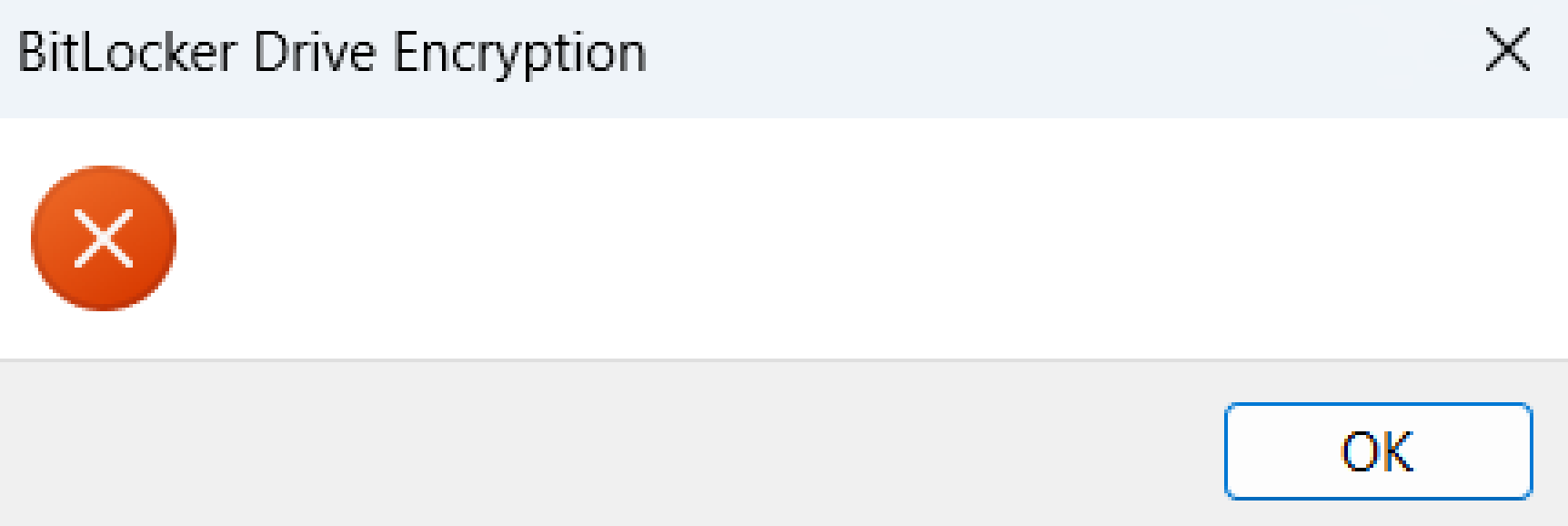
After swapping to the 4TB drive, my secondary data drive (D:)—which was already encrypted—stopped auto-unlocking. Every time I tried to re-enable it in the Control Panel, I was met with an infuriating blank error box.
The Logic: BitLocker auto-unlock works by storing an encrypted "protector" key on your C: drive. If C: isn't encrypted, the GUI simply fails because there is no "secure vault" available to hold the key.
The Fix:
- Encrypt C: You only need to encrypt "Used Space Only" to satisfy the requirement.
- Clear the "Ghost" Keys: Because the 4TB drive has a different hardware ID than the old 512GB drive, the old security metadata is "broken." Open Command Prompt (Admin) and run:
manage-bde -autounlock -clearallkeys C: - Reboot: This resets the TPM "heartbeat" and recognizes the new hardware.
- Enable: Now, manage-bde -autounlock -enable D: will finally work.
Step 3: Pro-Tip – Checking Encryption Strength
When you turn on BitLocker via the Windows GUI, it defaults to XTS-AES 128-bit encryption. While secure, many power users prefer XTS-AES 256-bit for long-term peace of mind. Since you've just moved to a 4TB drive, it’s the perfect time to check your standard.
How to Check:
Open Command Prompt (Admin) and type:
manage-bde -status
If it says XTS-AES 128, you are on the default. To force 256-bit on future drives, you must enable the policy in gpedit.msc under Computer Configuration > Administrative Templates > Windows Components > BitLocker Drive Encryption.
Conclusion
As AI tools continue to "nest" on our OS drives, the 512GB standard is officially dead for power users. Upgrading to a multi-terabyte drive is the easy part; the real work is wrestling Windows' security layer into recognizing its new home. If you hit a blank wall in the settings, put down the mouse and pick up the terminal.